Setup & Deployment Guide
Flutter · Firebase · iOS · Android — complete instructions for macOS and Windows.
Mac — Required Tools
macOS 12 (Monterey) or later is recommended. Install all tools listed below before beginning — having everything ready avoids interruptions mid-setup.
| Tool | Purpose | Where to Get |
|---|---|---|
| Flutter SDK 3.x | Core framework for both mobile app and admin panel | flutter.dev/docs/get-started/install/macos |
| Xcode (latest) | iOS simulator, build tools, App Store submission | Mac App Store → search “Xcode” |
| Android Studio | Android SDK, emulator, Gradle build tools | developer.android.com/studio |
| Firebase CLI | Deploy admin panel, Cloud Functions, Firestore rules | npm install -g firebase-tools |
| Node.js 22 LTS | Required for Firebase CLI and Cloud Functions | nodejs.org |
| Git | Version control (pre-installed via Xcode CLI tools) | Xcode → Install Command Line Tools |
| CocoaPods | iOS dependency manager for Flutter iOS builds | sudo gem install cocoapods |
| Homebrew (optional) | Mac package manager for installing tools | brew.sh |
| Google Chrome | Test the admin panel web app locally | google.com/chrome |
| VS Code (optional) | Code editor with Flutter & Dart extensions | code.visualstudio.com |
Windows — Required Tools
Windows users can build and deploy the Android app and admin panel. iOS builds require macOS — Windows cannot build for iOS.
| Tool | Purpose | Where to Get |
|---|---|---|
| Flutter SDK 3.x | Core framework for both mobile app and admin panel | flutter.dev/docs/get-started/install/windows |
| Android Studio | Android SDK, emulator, Gradle build tools | developer.android.com/studio |
| Git for Windows | Version control + Git Bash terminal | git-scm.com/download/win |
| Firebase CLI | Deploy admin panel, Cloud Functions, Firestore rules | npm install -g firebase-tools |
| Node.js 22 LTS | Required for Firebase CLI and Cloud Functions | nodejs.org |
| Java JDK 17+ | Required for Android keystore signing & Gradle | adoptium.net |
| Google Chrome | Test the admin panel web app locally | google.com/chrome |
| VS Code (optional) | Code editor with Flutter & Dart extensions | code.visualstudio.com |
| PowerShell 5+ | Recommended terminal for running build commands | Pre-installed on Windows 10/11 |
| Windows Terminal (opt) | Better terminal with tabbed interface | Microsoft Store → Windows Terminal |
1. Install Flutter SDK (Mac)
Flutter is the core framework used to build both the Coduo mobile app and the web-based admin panel.
- Check your Mac chip type
Click the Apple menu → About This Mac. Note whether you see Apple M1/M2/M3 (ARM) or Intel. Download the matching Flutter SDK ZIP.
- Download Flutter SDK
Visit flutter.dev/docs/get-started/install/macos and download the ZIP for your chip type. Extract it to
~/development/flutter. - Add Flutter to PATH
Open Terminal (Cmd+Space → Terminal). Edit your shell config file with the command below, add the export line, then save.
nano ~/.zshrc export PATH="$PATH:$HOME/development/flutter/bin" # Save: Ctrl+O → Enter → Ctrl+X source ~/.zshrc - Verify Flutter installation
Close and reopen Terminal. Run the command below. You should see green checkmarks for the installed tools.
flutter doctor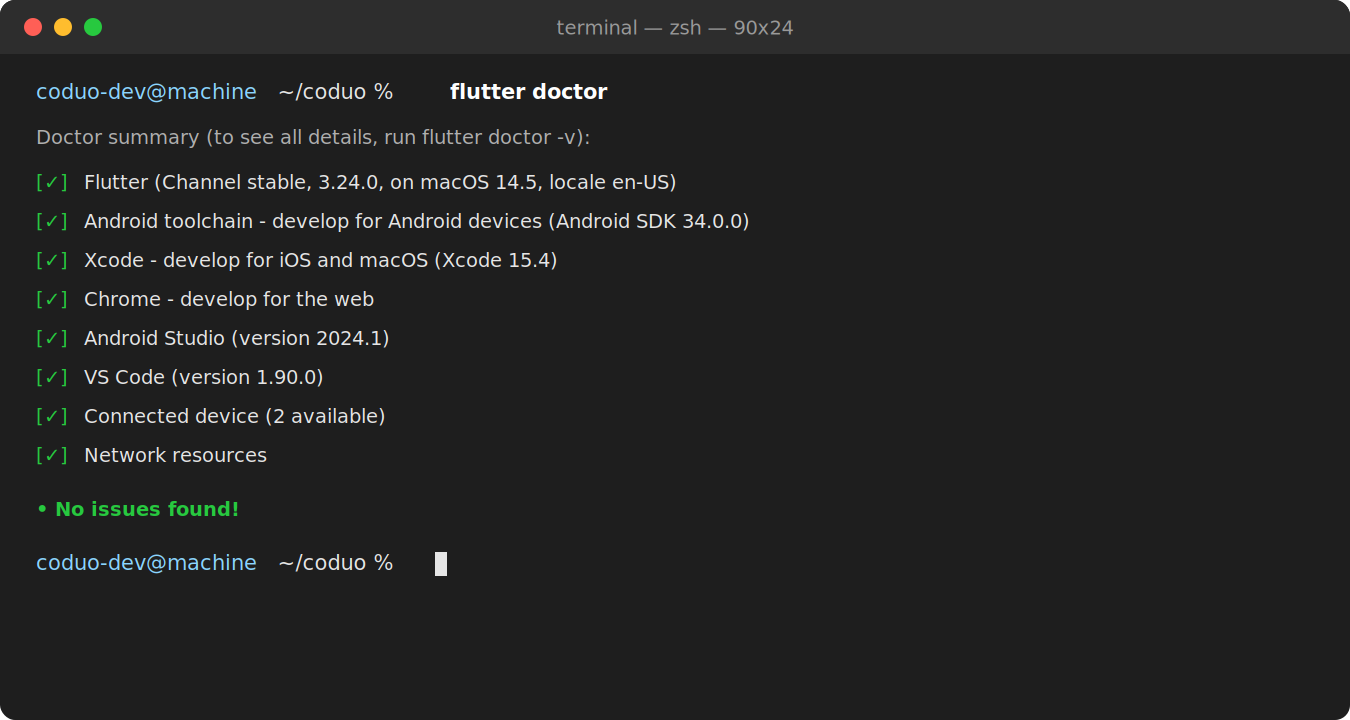
Successful flutter doctoroutput — green checkmarks confirm Flutter SDK, Xcode, Android Studio, and Command Line Tools are all correctly installed.Tip: A successfulflutter doctorrun shows green checkmarks for every installed tool — that confirms Flutter is correctly installed.
flutter doctor shows issues under Xcode or Android toolchain, complete those sections first before returning here.
2. Install Xcode (Mac)
Xcode is required to build iOS apps, run the iOS simulator, and submit to the App Store. It also installs essential Command Line Tools used by Flutter.
- Install Xcode from the Mac App Store
Open the App Store on your Mac. Search for “Xcode”. Click Get / Install. This is a large download (~12–14 GB) — allow 30–60 minutes on a good connection.
- Accept the Xcode license
Once installed, open Xcode and accept the license agreement, or run this command in Terminal:
sudo xcodebuild -license accept - Configure Xcode Command Line Tools
Run this command in Terminal to point Flutter at the correct Xcode version:
sudo sh -c 'xcode-select -s /Applications/Xcode.app/Contents/Developer && xcodebuild -runFirstLaunch' - Install CocoaPods
CocoaPods manages iOS dependencies for Flutter. Run in Terminal:
sudo gem install cocoapods
pod --version
3. Install Android Studio (Mac)
Android Studio provides the Android SDK, emulator, and Gradle build tools needed to build the Coduo Android app on macOS.
- Download Android Studio
Go to developer.android.com/studio — download the macOS .dmg file. Open the .dmg and drag Android Studio to your Applications folder.
- First launch setup
Open Android Studio. The Setup Wizard will appear — select Standard installation. Allow all SDK components to download (~2 GB).
- Accept Android SDK licenses
In Terminal, run:
flutter doctor --android-licenses # Type "y" and press Enter for each licence prompt - Install required NDK
In Android Studio: SDK Manager → SDK Tools → NDK (Side by side) → check version
27.1.12297006→ Apply. - Create an Android emulator
In Android Studio: Tools → Device Manager → Create Device. Choose Pixel 8, select API 34, click Finish.
- Verify full setup
Run the command below — all items should show a checkmark.
flutter doctor -v
4. Firebase Setup (Mac)
Firebase is the backend powering Coduo — handling authentication, database, file storage, cloud functions, and push notifications.
- Create a Firebase project
Go to console.firebase.google.com. Sign in with your Google account. Click Add Project, enter a project name, then click Create Project.
- Enable required Firebase services
In your new Firebase project, enable these services from the left sidebar:
Authentication → Get Started → Enable Email/Password + Google Sign-In Firestore Database → Create Database → Production mode → choose your region Storage → Get Started → Production mode Hosting → Get Started (required for admin panel deployment) Functions → Upgrade to Blaze (pay-as-you-go) plan — required for Cloud Functions - Open Project Settings
Click the gear icon beside “Project Overview” in the left sidebar, then click Project Settings to register your apps.
- Register your Android app
Project Settings → Add App → Android icon. Package name:
com.coduo.apps. Click Register App. Downloadgoogle-services.json→ place in:lms_app/android/app/google-services.json - Register your iOS app
Project Settings → Add App → iOS icon. Bundle ID:
com.coduo.apps. Click Register App. DownloadGoogleService-Info.plist→ place in:lms_app/ios/Runner/GoogleService-Info.plist - Register the web app (admin panel)
Project Settings → Add App → Web icon. App nickname: Coduo Admin. Check “Also set up Firebase Hosting”. Click Register app. Copy the
firebaseConfigobject shown. - Install the Firebase CLI and log in
Run the commands below. The login command opens a browser — sign in with your Google account.
npm install -g firebase-tools

firebase login
# This opens a browser window — sign in with your Google account

firebase use YOUR_PROJECT_ID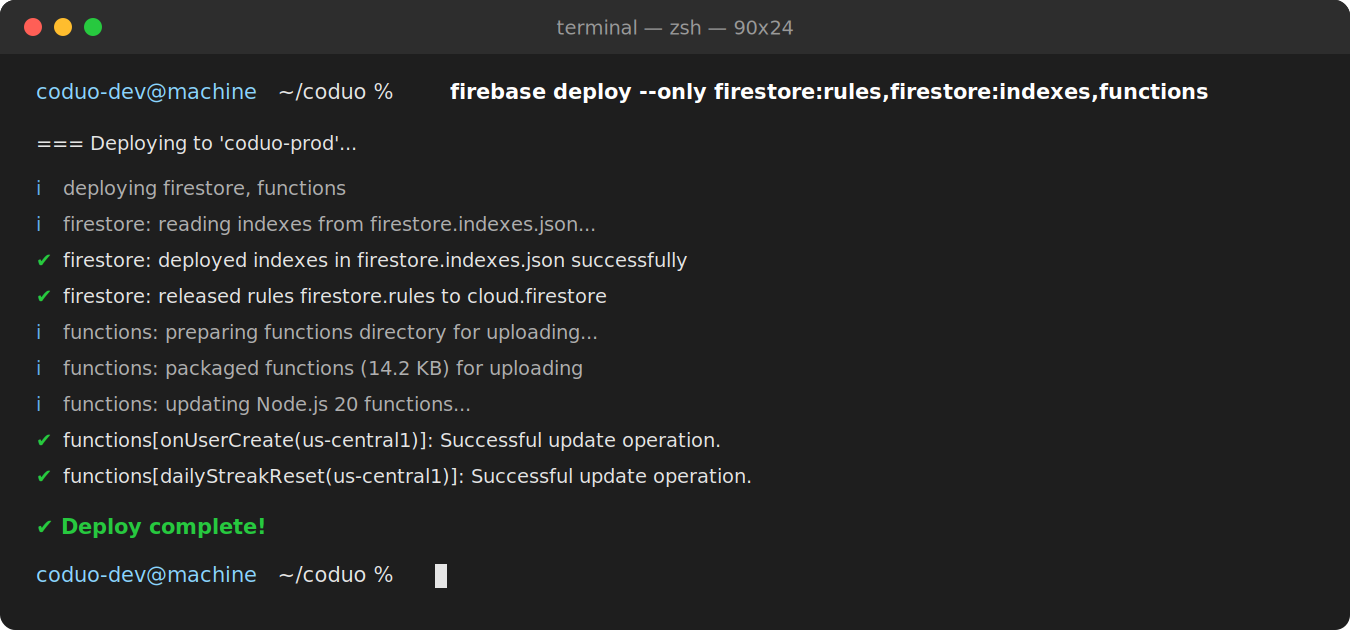
Terminal output of firebase deploy— Functions, Firestore rules, and Hosting all deployed successfully. - Update Firebase options in code
The Firebase configuration is stored in
firebase_options.dart. Use the FlutterFire CLI (recommended) to auto-generate it:# Install FlutterFire CLI dart pub global activate flutterfire_cli # Configure for mobile app cd lms_app flutterfire configure --project=YOUR_PROJECT_ID # Configure for admin panel cd ../lms_admin flutterfire configure --project=YOUR_PROJECT_ID - Update the admin auth service
Open
lms_admin/lib/services/auth_service.dartand update the project ID:static const String _projectId = 'YOUR_PROJECT_ID'; // ← change this - Update Firebase Hosting targets
Open
.firebasercand update with your project and site names:{ "projects": { "default": "YOUR_PROJECT_ID" }, "targets": { "YOUR_PROJECT_ID": { "hosting": { "admin": ["YOUR_ADMIN_SITE_NAME"], "public": ["YOUR_PUBLIC_SITE_NAME"] } } } }
4A. Securing Your Firebase Configuration (Important)
lms_app/web/index.html and lms_admin/web/index.html is a placeholder demo configuration, included only so the project runs out of the box for local testing. Replace it with your own project's configuration using one of the methods below before deploying publicly.
Why This Matters
A Firebase web configuration object (apiKey, authDomain, projectId, etc.) is not a secret in the same sense as a server-side API key — it is visible in any web app's page source by design, and Google does not treat it as confidential. Real security for your Firebase project comes from Firestore/Storage security rules and API key restrictions, not from hiding this object.
That said, leaving the literal demo placeholder values in your shipped index.html is still a problem: it points your production app at our demo Firebase project instead of yours, and it signals to buyers (and reviewers) that configuration management was not addressed. The fix is simple and takes a few minutes.
Method 1 — Firebase Hosting Auto-Init (Recommended)
If you deploy the admin panel to Firebase Hosting (which this project already does — see Section 5), Firebase can inject your configuration automatically at request time. This means no Firebase config object needs to live in your source code or version control at all.
- Remove the hardcoded config object
In
lms_admin/web/index.html(andlms_app/web/index.htmlif you build a web version of the mobile app), delete the literalfirebaseConfig = { apiKey: "...", ... }object. - Use the reserved Firebase Hosting init script
Replace it with a reference to Firebase Hosting's reserved URL, which auto-populates the correct config for whichever project the site is deployed to:
<script src="/__/firebase/init.js?useEmulator=true"></script> - Deploy as usual
Firebase Hosting serves the correct, project-specific configuration automatically. There is nothing to hardcode and nothing that can leak through a public repository.
lms_app.
Method 2 — Manual Replacement (Simplest, for Mobile and Web)
If you are not using Firebase Hosting auto-init, replace the placeholder values directly with your own project's configuration.
- Get your config from Firebase Console
Firebase Console → Project Settings → scroll to “Your apps” → select your Web app → copy the
firebaseConfigobject shown. - Replace the placeholder in each index.html
Paste your real values into
lms_app/web/index.htmlandlms_admin/web/index.html, replacing every placeholder field (apiKey, authDomain, projectId, storageBucket, messagingSenderId, appId). - Restrict the API key in Google Cloud Console
This is the actual security control. Go to console.cloud.google.com/apis/credentials → select your Firebase Web API key → under Application restrictions, choose HTTP referrers → add only your production domain(s). This prevents anyone who copies your visible API key from using it on a different domain.
Method 3 — Environment Variables at Build Time (Recommended for CI/CD and Multi-Environment Setups)
If you maintain separate dev, staging, and production Firebase projects, or build via a CI/CD pipeline, inject configuration values at build time instead of hardcoding them anywhere in the repository.
- Define your values outside the repo
Create a local file (e.g.
env/prod.json) that is excluded from version control via.gitignore:{ "FIREBASE_API_KEY": "your-real-api-key", "FIREBASE_PROJECT_ID": "your-real-project-id", "FIREBASE_APP_ID": "your-real-app-id" } - Add the file to .gitignore
echo "env/" >> .gitignore - Build with --dart-define-from-file
flutter build web --release --dart-define-from-file=env/prod.json - Read the values in Dart via String.fromEnvironment
const firebaseApiKey = String.fromEnvironment('FIREBASE_API_KEY'); const firebaseProjectId = String.fromEnvironment('FIREBASE_PROJECT_ID'); - In CI/CD pipelines
Store these same values as encrypted secrets in your CI provider (GitHub Actions secrets, GitLab CI/CD variables, etc.) and write the JSON file from secrets during the build step, rather than committing it anywhere.
Files That Must Never Be Committed to a Public Repository
| File | Why |
|---|---|
service-account.json | Grants full admin access to your entire Firebase project. Already in .gitignore by default — do not remove it. |
google-services.json (with real values) | Contains your real Android Firebase configuration. Safe to keep private even though, like the web config, it is not a traditional secret. |
GoogleService-Info.plist (with real values) | Contains your real iOS Firebase configuration. Same guidance as above. |
Any env/*.json or .env file | Contains build-time secrets or environment-specific values. |
| Stripe / Paystack secret keys | These are true secrets. Never store them anywhere except Firebase Functions secrets (firebase functions:secrets:set), as covered in Section 9. |
4B. Backing Up Your Firestore Database (Important)
What to Back Up
| Item | Why It Matters |
|---|---|
| Firestore Database | All collections and documents — users, tracks, lessons, challenges, transactions, and more |
| Cloud Storage | User uploads, course materials, media files, and generated portfolios |
| Authentication Users | User accounts, emails, and auth metadata |
| Firebase Configuration | firestore.rules, firestore.indexes.json, firebase.json |
When You Should Take a Backup
- Before deploying new Firestore security rules
- Before running any data migration or bulk-update script
- Before a major admin panel or Cloud Functions update
- Before granting a new
admin_usersentry or changing user roles at scale - On a regular schedule in production — weekly, at minimum
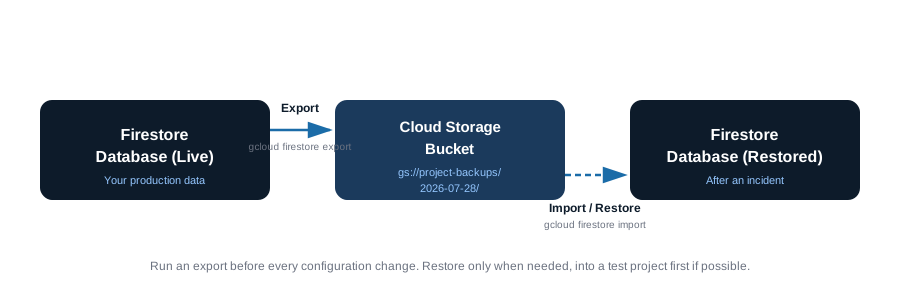
Method 1 — Automated Export via gcloud CLI (Recommended)
This is the Google-recommended method for production systems and works on any Firebase project on the Blaze plan.
- Install the gcloud CLI (if not already installed)
Visit cloud.google.com/sdk/docs/install and follow the instructions for your OS, then authenticate:
gcloud auth login gcloud config set project YOUR_PROJECT_ID - Create a dedicated Cloud Storage bucket for backups (skip if you already have one)
# Create the bucket gsutil mb -p YOUR_PROJECT_ID gs://YOUR_PROJECT_ID-firestore-backups # Optional: auto-delete backups older than 30 days cat > lifecycle.json << EOF { "lifecycle": { "rule": [ { "action": {"type": "Delete"}, "condition": {"age": 30} } ] } } EOF gsutil lifecycle set lifecycle.json gs://YOUR_PROJECT_ID-firestore-backups - Run the export
# Export the entire database gcloud firestore export gs://YOUR_PROJECT_ID-firestore-backups/$(date +%Y-%m-%d) \ --project=YOUR_PROJECT_ID # Or export specific collections only gcloud firestore export gs://YOUR_PROJECT_ID-firestore-backups/$(date +%Y-%m-%d) \ --collection-ids=users,courses,lessons,tracks \ --project=YOUR_PROJECT_ID - Verify the export
gcloud firestore operations list --project=YOUR_PROJECT_ID
gsutil ls -r gs://YOUR_PROJECT_ID-firestore-backups/
Method 2 — Manual Export via Firebase Console (No CLI Required)
Best for a quick one-time backup without installing anything.
- Open Firestore Database
Firebase Console → select your project → Firestore Database in the left menu.
- Open the export dialog
Click the ⋮ (three dots) menu at the top → select Import/Export → Export.
- Choose a destination and export
Select (or create) a Cloud Storage bucket, optionally choose specific collections, then click Export.
Method 3 — Firebase CLI Export
An alternative to gcloud if you already have the Firebase CLI installed and prefer to stay in one tool.
- Log in and set your project
firebase login firebase use YOUR_PROJECT_ID - Export Firestore data
firebase firestore:export gs://YOUR_BUCKET_NAME/backups/$(date +%Y-%m-%d-%H%M%S)
Backing Up Cloud Storage Files
Your Cloud Storage bucket holds user uploads, course materials, and generated portfolios — back this up separately from Firestore.
- Download everything locally
mkdir -p ~/firebase-backups/storage/$(date +%Y-%m-%d) gsutil -m cp -r gs://YOUR_PROJECT_ID.appspot.com/* \ ~/firebase-backups/storage/$(date +%Y-%m-%d)/ - Or mirror to a second bucket (recommended for production — preserves metadata)
gsutil mb gs://YOUR_PROJECT_ID-storage-backup
gsutil -m rsync -r -d gs://YOUR_PROJECT_ID.appspot.com gs://YOUR_PROJECT_ID-storage-backup
Backing Up Authentication Users
- Export via Firebase CLI
firebase auth:export auth-backup-$(date +%Y-%m-%d).json --format=json - Or download a CSV from Google Cloud Console
Identity Platform → Users tab → ⋮ menu → Download CSV.
Restoring From a Backup
- Restore Firestore
# Restore everything from a specific dated backup gcloud firestore import gs://YOUR_PROJECT_ID-firestore-backups/2026-07-28 \ --project=YOUR_PROJECT_ID # Or restore specific collections only gcloud firestore import gs://YOUR_PROJECT_ID-firestore-backups/2026-07-28 \ --collection-ids=users,courses \ --project=YOUR_PROJECT_ID - Restore Cloud Storage files
gsutil -m cp -r gs://YOUR_PROJECT_ID-storage-backup/* \ gs://YOUR_PROJECT_ID.appspot.com/ - Restore Authentication users
firebase auth:import auth-backup-2026-07-28.json \
  --hash-algo=SCRYPT --hash-key=BASE64_KEY --salt-separator=BASE64_SALT
Automating Daily Backups (Optional)
For production apps, schedule exports automatically instead of remembering to run them manually. Use Cloud Scheduler to trigger a scheduled Cloud Function:
// functions/src/backup/scheduledBackup.ts
import * as functions from 'firebase-functions/v2/scheduler';
import * as admin from 'firebase-admin';

export const scheduledFirestoreBackup = functions.onSchedule({
  schedule: 'every day 02:00',
  timeZone: 'UTC',
}, async (event) => {
  const projectId = process.env.GCLOUD_PROJECT;
  const bucket = `gs://${projectId}-firestore-backups`;
  const date = new Date().toISOString().split('T')[0];
  await admin.firestore().client.exportDocuments({
    outputUriPrefix: `${bucket}/${date}`,
    collectionIds: []  // empty array = export everything
  });
});
firebase deploy --only functions:scheduledFirestoreBackupQuick Reference
| Task | Command |
|---|---|
| Export now (one-time) | gcloud firestore export gs://YOUR_BUCKET/backups/$(date +%Y-%m-%d) |
| Import / restore | gcloud firestore import gs://YOUR_BUCKET/backups/DATE_FOLDER |
| List existing backups | gsutil ls gs://YOUR_BUCKET/backups/ |
| Export Auth users | firebase auth:export backup.json --format=json |
Backup Checklist Before Any Configuration Change
- Firestore database exported to Cloud Storage
- Cloud Storage files backed up or mirrored to a second bucket
- Authentication users exported to JSON
- Firebase configuration files (firestore.rules, firestore.indexes.json) saved
- Export verified as complete (checked file listing or metadata)
- Restore tested at least once in a non-production project
A. Mobile App — Theme & Colours
All mobile app colours are centralised in a single theme file. You only need to edit this one file to retheme the entire app — every screen updates automatically.
Current Colour Palette
These are the default Coduo colours. Change any hex value to retheme the app:
| Constant | Hex Value | Usage |
|---|---|---|
appThemeColor | #0D1B2A | Main colour — nav bar, primary buttons, headers |
appAccentColor | #1B3A5C | Dark accents, secondary elements |
| Deep Navy | #0D1B2A | Default primary (deep navy blue) |
| Deep Indigo | #1A237E | Alternative — deep indigo |
| Deep Green | #1B5E20 | Alternative — deep green |
| Deep Purple | #4A148C | Alternative — deep purple |
| Deep Teal | #006064 | Alternative — deep teal |
How to Change the Primary Colour
- Open the config file
Open
lms_app/lib/configs/app_config.dartin your code editor. - Change the appThemeColor hex value
Find the
appThemeColorconstant and update the hex code. All elements using this colour update automatically.// In lms_app/lib/configs/app_config.dart static const Color appThemeColor = Color(0xFF0D1B2A); // ← change this hex // Example: Change to Blue Indigo theme static const Color appThemeColor = Color(0xFF1A237E); static const Color appAccentColor = Color(0xFF283593); - Also update the Admin Panel theme
Open
lms_admin/lib/configs/mwaghavul_theme.dartand update the matching colours to keep brand consistency. - Hot reload or rebuild
Save the file. If running in debug mode, press
rin Terminal to hot reload and see changes instantly.# Quick test in debug mode: cd lms_app flutter run # Then press "r" in Terminal to hot reload after colour changes
flutter build for theme changes during development.
App Name — Where to Change It
The app name appears on the splash screen, app bar, and home screen icon label. Update it in three places:
// 1. Flutter config
// lms_app/lib/configs/app_config.dart
static const String appName = 'Coduo';  // ← change here

// 2. Android label
// lms_app/android/app/src/main/AndroidManifest.xml
android:label="Coduo"

// 3. iOS display name
// lms_app/ios/Runner/Info.plist
<key>CFBundleDisplayName</key>
<string>Coduo</string>
B. Mobile App — Logo & Launcher Icon
The app has two separate image assets: the logo (shown inside the app UI) and the launcher icon (shown on the device home screen).
File Locations
lms_app/assets/images/logo.png        ← UI logo (splash, sidebar, headers)
lms_app/assets/images/logo_dark.png   ← White logo for dark backgrounds
lms_app/assets/images/icon.png        ← Home screen launcher icon
lms_admin/assets/images/logo.png      ← Admin panel sidebar logo
lms_admin/web/favicon.png             ← Admin panel browser tab icon
lms_admin/web/icons/Icon-192.png      ← Admin panel PWA icon
lms_admin/web/icons/Icon-512.png      ← Admin panel PWA icon (large)
Part 1 — Replace the App Logo
- Prepare your logo image
Requirements: PNG format with transparent background. Minimum 512×512px (1024×1024px recommended). Can be rectangular (e.g. horizontal logo with text).
- Copy your logo file
Run the commands below to copy your logo into the correct location:
# Mac / Linux: cp your-logo.png lms_app/assets/images/logo.png cp your-logo.png lms_app/assets/images/logo_dark.png cp your-logo.png lms_admin/assets/images/logo.png # Windows: copy your-logo.png lms_app\assets\images\logo.png copy your-logo.png lms_app\assets\images\logo_dark.png copy your-logo.png lms_admin\assets\images\logo.png - Verify the asset path is registered
Open
lms_app/pubspec.yamland confirm the assets section includes:flutter: assets: - assets/images/ - Test the logo
Run the app and check the splash screen and navigation bar for your new logo.
cd lms_app && flutter run
Part 2 — Replace the Launcher Icon (Home Screen)
- Prepare your icon image
Requirements: PNG format, exactly 1024×1024px square. No rounded corners (the OS adds them). No text — icons must be readable at 48×48px.
- Copy the icon file
# Mac / Linux: cp your-icon.png lms_app/assets/images/icon.png # Windows: copy your-icon.png lms_app\assets\images\icon.png - Generate platform-specific icons
This one command generates all required sizes for both Android and iOS automatically:
cd lms_app
flutter pub run flutter_launcher_icons

# Expected output:
# Successfully generated launcher icons for Android
# Successfully generated launcher icons for iOS
flutter install.
C. Admin Panel — Theme, Colours & Logo
The admin panel has its own theme file, separate from the mobile app. Update both to keep a consistent brand look.
Admin Theme File Locations
lms_admin/lib/configs/mwaghavul_theme.dart   ← admin colour constants
lms_admin/lib/configs/app_config.dart        ← admin app name + background colours
lms_admin/lib/configs/assets_config.dart ← logo file paths- Open the admin theme file
Open
lms_admin/lib/configs/mwaghavul_theme.dartin your code editor. - Change colour values
Update the colour constants. The
primaryGreenconstant controls the sidebar, buttons, and key UI elements.// lms_admin/lib/configs/mwaghavul_theme.dart static const Color primaryGreen = Color(0xFF0D1B2A); // ← main brand colour static const Color secondaryGreen = Color(0xFF1B3A5C); // ← secondary colour - Update the admin app name
Open
lms_admin/lib/configs/app_config.dart:static const String appName = 'Coduo Admin Panel'; // ← change this - Rebuild and deploy the admin panel
cd lms_admin
flutter clean && flutter pub get
flutter build web --release
cd ..
firebase deploy --only hosting:admin

# Clear your browser cache after deploy:
# Mac:     Cmd + Shift + R
# Windows: Ctrl + Shift + R
5. Admin Panel Deployment (Mac)
The Coduo admin panel is a Flutter Web app. Build it locally and deploy it to Firebase Hosting so it is accessible from any browser.
- Set the Firebase project
From your project root in Terminal:
firebase use YOUR_PROJECT_ID firebase projects:list # verify - Create Firebase Hosting sites
firebase hosting:sites:create YOUR_APP_admin firebase hosting:sites:create YOUR_APP_public - Build the admin panel
cd lms_admin flutter pub get flutter build web --release cd .. - Deploy to Firebase Hosting
firebase deploy --only hosting:admin - Grant yourself admin access
After deploying, you need to create the first admin user. See Section 12 — First Admin User for full instructions. Quick method: Firebase Console → Firestore → create collection
admin_users→ Document ID: your UID → Field:email(string) = your email address. - Deploy Cloud Functions
Set required API secrets then deploy:
firebase functions:secrets:set GROQ_API_KEY
firebase functions:secrets:set STRIPE_SECRET_KEY
firebase functions:secrets:set PAYSTACK_SECRET_KEY
firebase functions:secrets:set JUDGE0_API_KEY
firebase functions:secrets:set JUDGE0_API_URL

cd functions
npm install
npm run build
cd ..
firebase deploy --only functions
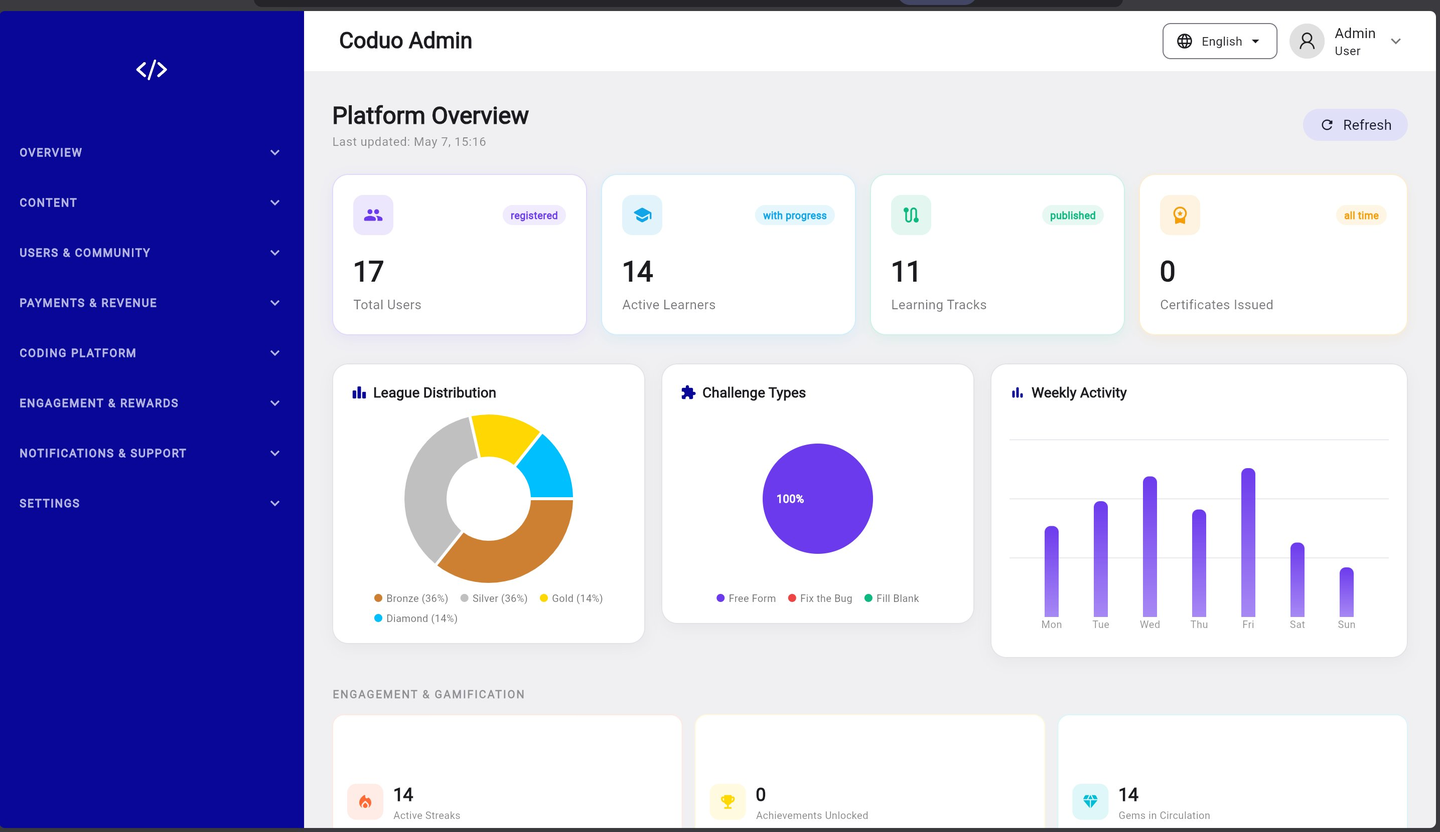
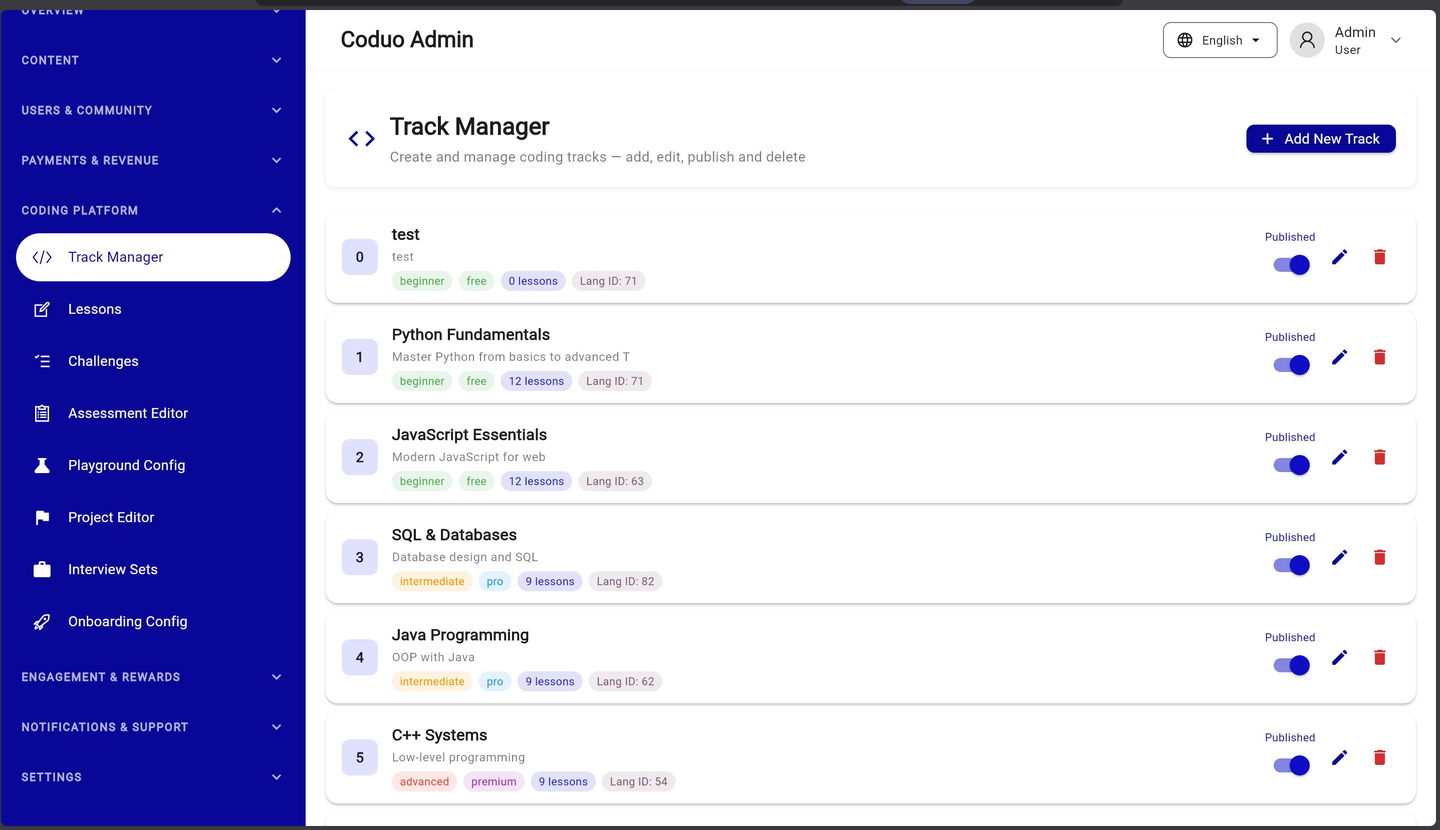
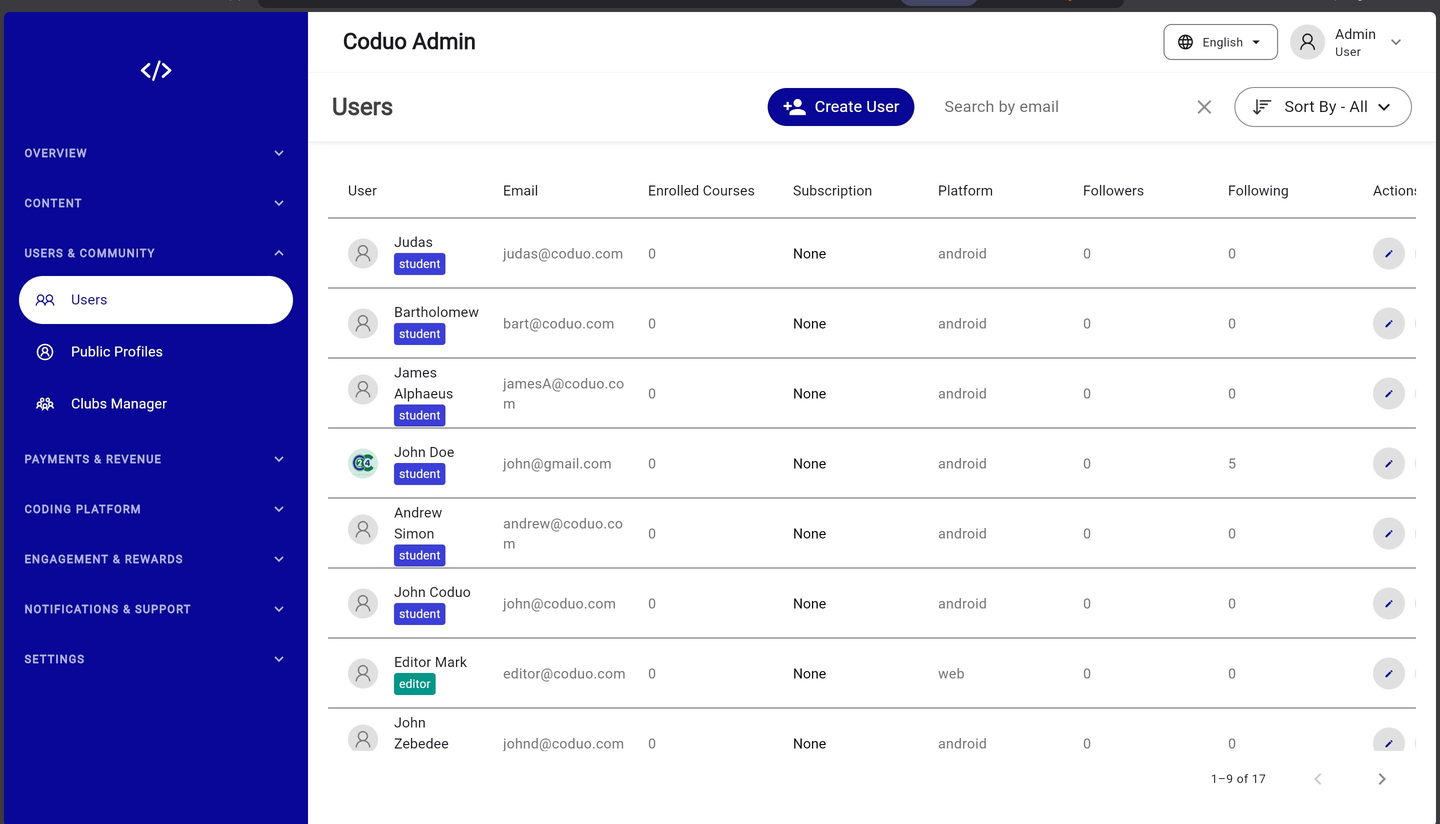
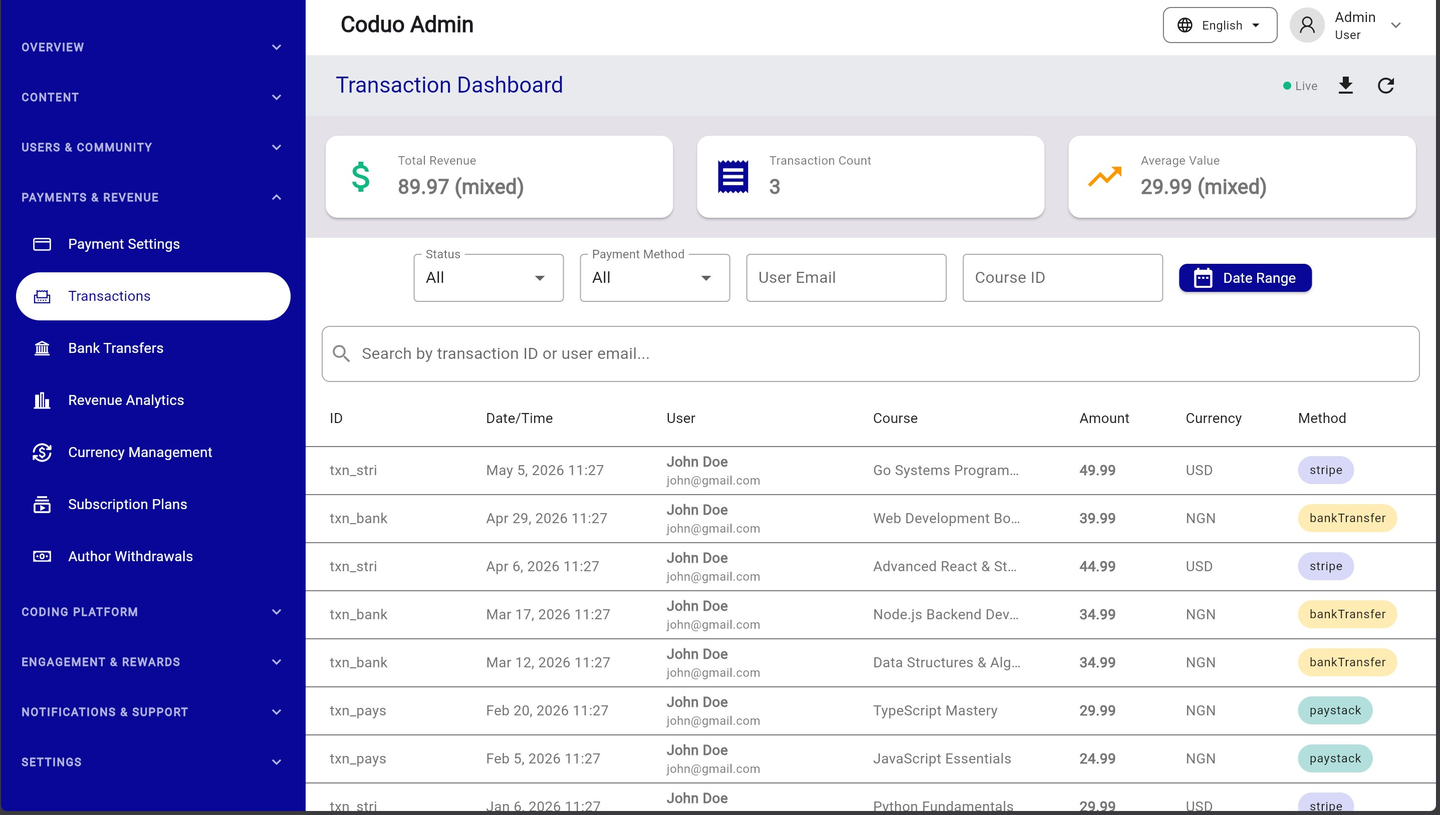
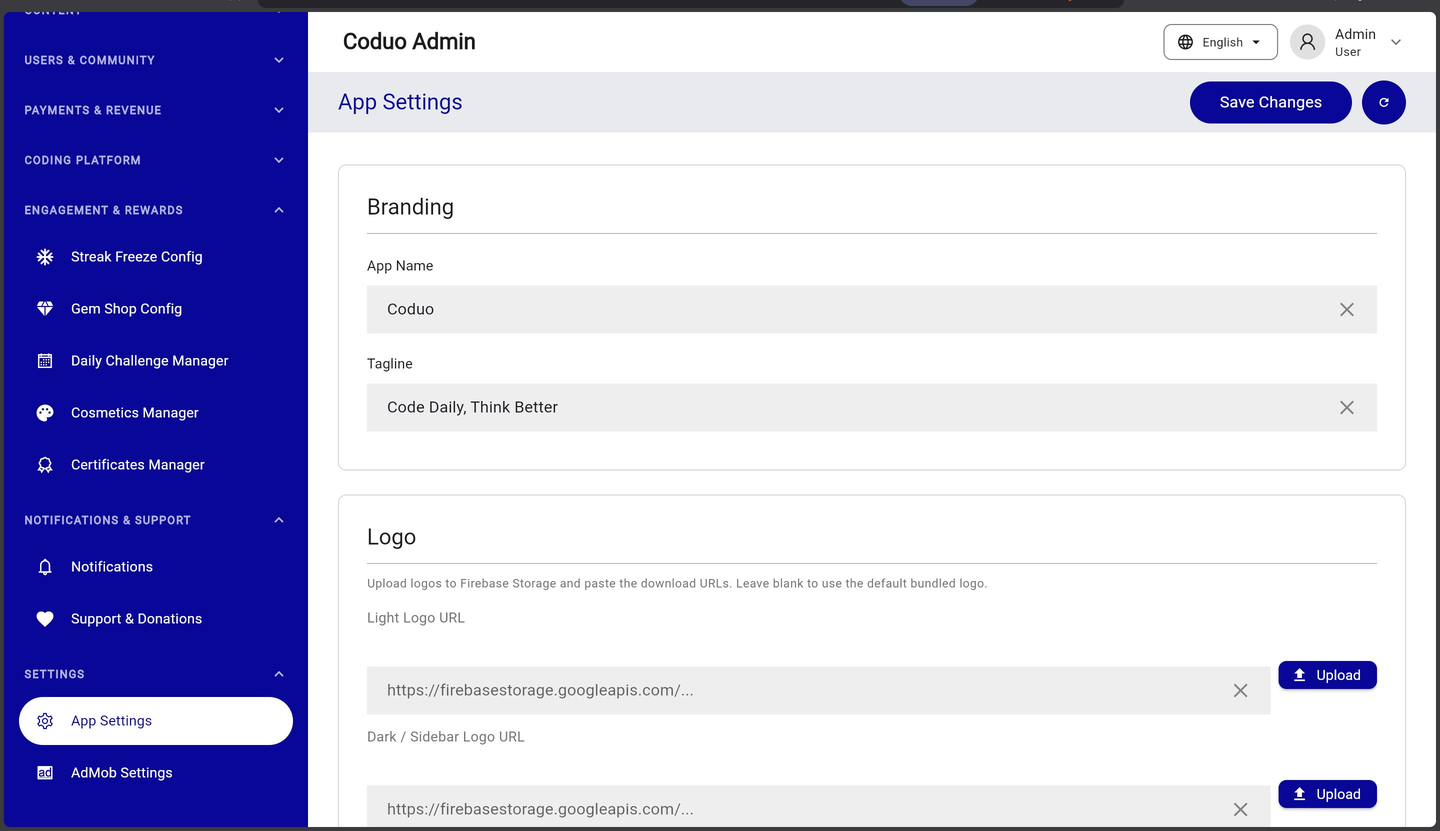
Admin Panel — What It Looks Like After Deployment
Once deployed and logged in, the admin panel provides a comprehensive web interface for managing the entire platform.
D. Running the App on a Physical Device
You can run and test the Coduo mobile app directly on a physical Android or iOS device connected to your computer via USB. This is always preferred over an emulator for testing payments, push notifications, and performance.
Android Device — Mac & Windows
- Enable Developer Options on your phone
On your Android phone: Settings → About Phone → tap “Build Number” 7 times rapidly. You will see “You are now a developer!”
- Enable USB Debugging
Settings → Developer Options → turn on “USB Debugging”. A dialog may appear on the phone — tap “Allow”.
- Connect via USB
Connect your phone to your computer with a USB cable. On the phone, if prompted, select “File Transfer” or “MTP” mode (not “Charging only”).
- Verify Flutter sees the device
flutter devices # Example output: # 2 connected devices: # Pixel 8 (mobile) • R3CX123456 • android-arm64 • Android 14 # Chrome (web) • chrome • web-javascript • Google Chrome - Run the app on your device
cd lms_app
flutter run

# If multiple devices connected, specify:
flutter run -d DEVICE_ID
iOS Device — Mac Only
- Connect your iPhone via USB
Connect your iPhone to your Mac. A prompt will appear on iPhone asking “Trust This Computer?” — tap Trust.
- Verify Flutter sees the device
Run
flutter devices— you should see your iPhone listed. - Open in Xcode first (one-time setup)
Before the first run on a real device, open Xcode to configure signing:
open lms_app/ios/Runner.xcworkspace # In Xcode: # Runner → Signing & Capabilities → select your Team # Xcode will provision the device automatically - Run the app on your iPhone
cd lms_app
flutter run

# First run on a new device may take several minutes
# Your phone must remain unlocked during installation
E. Running the Admin Panel on Chrome (Local Dev)
You can run the admin panel locally in Chrome without deploying to Firebase. This is the fastest way to develop and test admin panel changes.
Mac — Run Admin Panel on Chrome
- Navigate to the admin panel folder, then install dependencies
Only needed the first time or after updating packages:
cd lms_admin flutter pub get flutter run -d chrome # Chrome opens automatically at http://localhost:PORT - Hot reload during development
While running, press these keys in Terminal:
r   → hot reload  (applies code changes instantly)
R   → hot restart (full widget rebuild)
q   → quit
6. Android Keystore & Play Store Upload (Mac)
Every Android app must be signed with a keystore before it can be uploaded to the Google Play Store. Back up your keystore — if you lose it, you cannot update your app.
- Generate a keystore
Run this command from inside the
lms_app/directory. Replace values with your own:keytool -genkey -v \ -keystore android/your-app-release.jks \ -alias your-app \ -keyalg RSA \ -keysize 2048 \ -validity 10000 \ -dname "CN=Your Name, OU=Mobile, O=Your Company, L=City, ST=State, C=US" \ -storepass YOUR_STORE_PASSWORD \ -keypass YOUR_KEY_PASSWORDNote: Save your keystore file and passwords in a secure place (e.g. a password manager). If you lose them, you cannot update your app on the Play Store. - Configure key.properties
Open
lms_app/android/key.propertiesand fill in your values:storePassword=YOUR_STORE_PASSWORD keyPassword=YOUR_KEY_PASSWORD keyAlias=your-app storeFile=../your-app-release.jks - Change the package name (if needed)
The default package is
com.coduo.apps. To change it:cd lms_app dart run change_app_package_name:main com.yourcompany.yourapp # Then update app_config.dart: static const String androidPackageName = 'com.yourcompany.yourapp'; - Build the release AAB
Google Play requires an Android App Bundle (.aab), not an APK:
cd lms_app flutter build appbundle --release # Output file: # lms_app/build/app/outputs/bundle/release/app-release.aab - Upload to Play Console
Go to play.google.com/console → your app → Release → Production → Create new release → Upload the .aab file.
- Add SHA-1 to Firebase
Get your SHA-1 fingerprint and add it to Firebase for Google Sign-In:
keytool -list -v \
  -keystore lms_app/android/your-app-release.jks \
  -alias your-app \
  -storepass YOUR_STORE_PASSWORD

# Copy the SHA-1 value
# Firebase Console → Project Settings → Android app → Add fingerprint → paste SHA-1
7. iOS Build & App Store Upload (Mac)
iOS builds require a Mac and an Apple Developer account. Follow these steps to build and submit Coduo to the App Store.
- Register your Bundle ID
Go to developer.apple.com/account → Certificates, Identifiers & Profiles → Identifiers → + → App IDs. Bundle ID:
com.coduo.apps. Enable: Push Notifications, Sign In with Apple. - Create the app in App Store Connect
Go to appstoreconnect.apple.com → My Apps → + → New App. Platform: iOS. Bundle ID: select yours. Click Create.
- Set up signing in Xcode
Open
lms_app/ios/Runner.xcworkspacein Xcode (not .xcodeproj). Runner → Signing & Capabilities → check Automatically manage signing → select your Team. - Install CocoaPods dependencies
cd lms_app/ios pod install # If errors: pod repo update && pod install --repo-update - Build the iOS app
Run from the
lms_appdirectory:cd lms_app flutter build ipa --release # Output: # lms_app/build/ios/ipa/Runner.ipa - Upload to App Store Connect
In Xcode Organizer: select your archive → Distribute App → App Store Connect → Upload → keep defaults → Upload.
- Submit for review
App Store Connect → your app → App Store tab → + Version → fill in screenshots and description → Build → + → select your build → Add for Review.
- Set up APNs for push notifications
Apple Developer → Certificates → + → Apple Push Notification service. Upload the .p8 key to Firebase: Project Settings → Cloud Messaging → APNs Authentication Key.
Required App Store Assets
| Asset | Size | Notes |
|---|---|---|
| App Icon | 1024×1024px | No alpha channel, no rounded corners |
| iPhone 6.7″ screenshots | 1290×2796px | Required |
| iPhone 6.5″ screenshots | 1242×2688px | Required |
| iPhone 5.5″ screenshots | 1242×2208px | Required |
| iPad Pro 12.9″ screenshots | 2048×2732px | Required if supporting iPad |
| Privacy Policy URL | — | Required by Apple |
1. Install Flutter SDK (Windows)
Flutter is the core framework used to build both the Coduo mobile app and the admin panel.
- Download Flutter SDK
Visit flutter.dev/docs/get-started/install/windows and download the Flutter SDK ZIP for Windows. Extract it to
C:\dev\flutter(or your preferred location). - Add Flutter to System PATH
Open Start → System Properties → Environment Variables. Under System Variables, select Path → Edit → New → Add:
C:\dev\flutter\bin(adjust to match your extraction path). Click OK on all dialogs. - Verify Flutter installation
Open a new Command Prompt or PowerShell window and run:
flutter --version flutter doctor - Install Android Studio
Download from developer.android.com/studio. Run the installer and complete the Setup Wizard. In SDK Manager: Android 14.0 (API 36), NDK 27.1.12297006, Build-Tools 36.
- Accept Android licenses
flutter doctor --android-licenses
2. Install Node.js 22 & Firebase CLI (Windows)
- Download nvm-windows
Go to github.com/coreybutler/nvm-windows/releases and download
nvm-setup.exe. Run the installer. - Install Node.js 22
Open a new terminal and run:
nvm install 22 nvm use 22 node --version # should show v22.x.x - Install Firebase CLI
npm install -g firebase-tools
firebase login
3. Android Keystore & Play Store (Windows)
The keystore process on Windows is the same as Mac, but uses Windows path separators.
- Generate keystore
Open PowerShell in the
lms_appdirectory and run:keytool -genkey -v ` -keystore android\your-app-release.jks ` -alias your-app ` -keyalg RSA -keysize 2048 -validity 10000 ` -dname "CN=Your Name, OU=Mobile, O=Your Company, L=City, ST=State, C=US" ` -storepass YOUR_STORE_PASSWORD ` -keypass YOUR_KEY_PASSWORD - Configure key.properties
Open
lms_app\android\key.propertiesand fill in your values (use backslash for Windows paths):storePassword=YOUR_STORE_PASSWORD keyPassword=YOUR_KEY_PASSWORD keyAlias=your-app storeFile=..\your-app-release.jks - Build the release AAB
cd lms_app
flutter build appbundle --release
8. AI Configuration (Groq, Gemini, OpenAI, Judge0)
Coduo uses AI for three features: AI Code Review, AI Tutor Chat (“Ask Cody”), and Error Explanation. Code execution is powered by Judge0. You do not need all providers — Groq alone is sufficient for most use cases.
AI Provider Chain
The system tries providers in this order. If one fails or is not configured, it falls back to the next:
1. Groq       (fastest, free tier — recommended starting point)
2. Gemini     (Google, generous free tier)
3. OpenAI     (most capable, paid)
4. Rule-based fallback (always works, no LLM — no keys needed)
Groq Setup (Recommended — Start Here)
Groq is the fastest and has a generous free tier (14,400 requests/day).
- Get API key
Go to console.groq.com → Sign up / log in → API Keys → Create API Key. Copy the key (starts with
gsk_...). - Set the secret
firebase functions:secrets:set GROQ_API_KEY
# Paste your key when prompted
firebase deploy --only functions
Gemini Setup (Google AI — Free Fallback)
- Get API key
Go to aistudio.google.com → Get API key → Create API key. Copy the key (starts with
AIza...). - Set the secret
firebase functions:secrets:set GEMINI_API_KEY
firebase deploy --only functions
Judge0 Setup (Code Execution)
Judge0 executes learner code in a sandboxed environment. Use RapidAPI for the easiest setup.
- Subscribe on RapidAPI
Go to rapidapi.com/judge0-official/api/judge0-ce → Sign up → Subscribe to the Basic plan (free: 100 requests/day). Copy your RapidAPI Key.
- Set secrets
firebase functions:secrets:set JUDGE0_API_KEY
# Paste your RapidAPI key

firebase functions:secrets:set JUDGE0_API_URL
# Paste: https://judge0-ce.p.rapidapi.com

firebase deploy --only functions
Verify AI Is Working
firebase functions:log --only reviewCode

# In the app: Log in as Pro user → open a coding challenge
# → write code → tap 'AI Review' → should see feedback in 2-5 seconds
AI Configuration Quick Reference
| Setup | Keys Needed | Result |
|---|---|---|
| No AI | None | Rule-based feedback only — works out of the box |
| Basic | GROQ_API_KEY | Full AI features, free tier (14,400/day) |
| Recommended | GROQ_API_KEY + GEMINI_API_KEY | Redundancy — Gemini as fallback |
| Full | All three + JUDGE0_API_KEY | Maximum reliability and capabilities |
9. Payment Configuration
Coduo supports three payment methods: Stripe (cards), Paystack (Africa/global), and Bank Transfer (manual verification). You can enable any combination.
Stripe Setup
- Create a Stripe account
Go to stripe.com → Start now. Complete account verification (business details, bank account). Activate your account for live payments.
- Get API keys
Stripe Dashboard → Developers → API keys. Copy the Publishable key (
pk_live_...) and Secret key (sk_live_...).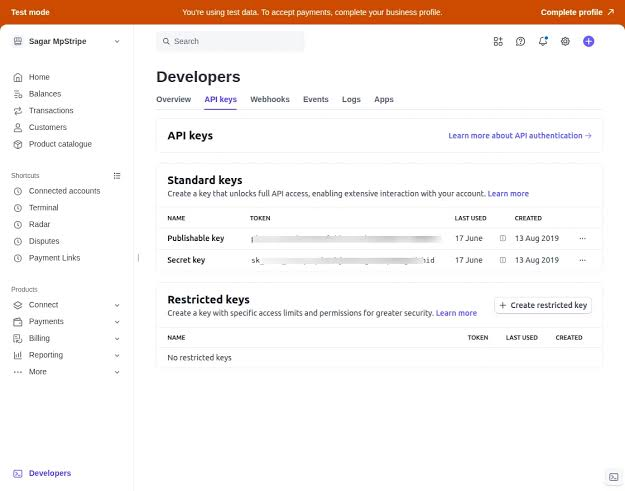
Stripe Dashboard → Developers → API keys — copy the Publishable key for the app and set the Secret key via Firebase CLI only. - Set the secret key in Firebase
firebase functions:secrets:set STRIPE_SECRET_KEY # Paste sk_live_... or sk_test_... firebase deploy --only functions - Update the publishable key in the app
Open
lms_app/lib/services/payment_service.dart:static const String stripePublishableKey = 'pk_live_YOUR_KEY_HERE'; - Set up the webhook
Stripe Dashboard → Developers → Webhooks → Add endpoint. URL:
https://YOUR_REGION-YOUR_PROJECT.cloudfunctions.net/stripeWebhook. Events:payment_intent.succeeded,payment_intent.payment_failed. Copy the Signing secret (whsec_...) and set it:firebase functions:secrets:set STRIPE_WEBHOOK_SECRET # Paste whsec_... firebase deploy --only functions
Paystack Setup (Africa/Global)
- Create a Paystack account
Go to paystack.com → Create free account. Complete business verification.
- Get API keys
Paystack Dashboard → Settings → API Keys & Webhooks. Copy Public Key (
pk_live_...) and Secret Key (sk_live_...).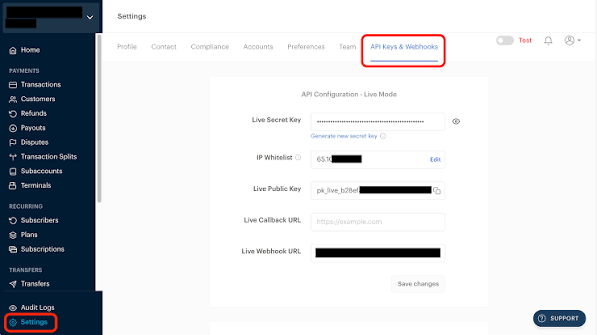
Paystack Dashboard → Settings → API Keys & Webhooks — copy the Public Key for the app and set the Secret Key via Firebase CLI only. - Set the secret key
firebase functions:secrets:set PAYSTACK_SECRET_KEY firebase deploy --only functions - Update the public key in the app
Open
lms_app/lib/services/paystack_service.dart:static const String paystackPublicKey = 'pk_live_YOUR_KEY_HERE'; - Set up the webhook
Paystack Dashboard → Settings → API Keys & Webhooks. Webhook URL:
https://YOUR_REGION-YOUR_PROJECT.cloudfunctions.net/paystackWebhook
Bank Transfer Setup
Bank transfer allows users to pay via direct bank transfer and upload proof of payment for admin verification.
Configure bank details in the Admin Panel → Payment Settings → Bank Transfer, or set directly in Firestore payment_configuration/bank_transfer:
{
  "enabled": true,
  "bank_name": "First Bank",
  "account_number": "1234567890",
  "account_name": "Your Company Name",
  "instructions": "Transfer the exact amount and upload your receipt.",
  "expiry_hours": 48
}pk_test_, sk_test_) during development. Switch to live keys (pk_live_, sk_live_) before production launch. Never commit live keys to version control.
10. Social Login Configuration
Coduo supports Google, Facebook, and Apple Sign-In. Google Sign-In is already integrated — you just need to add your SHA-1 fingerprint. Facebook and Apple require additional setup.
Google Sign-In
- Get SHA-1 fingerprint
# From lms_app directory: keytool -list -v \ -keystore android/your-app-release.jks \ -alias your-app \ -storepass YOUR_STORE_PASSWORD - Add SHA-1 to Firebase
Firebase Console → Project Settings → Android app → Add fingerprint → paste SHA-1. Download the updated
google-services.jsonand replacelms_app/android/app/google-services.json. - Add iOS reversed client ID
Open
lms_app/ios/Runner/Info.plistand add your reversed client ID (found inGoogleService-Info.plistasREVERSED_CLIENT_ID):<key>CFBundleURLTypes</key> <array> <dict> <key>CFBundleURLSchemes</key> <array> <string>com.googleusercontent.apps.YOUR_CLIENT_ID</string> </array> </dict> </array>
Apple Sign-In
Apple Sign-In is required by Apple if your app offers any other social login on iOS.
- Enable in Apple Developer
developer.apple.com → Certificates, Identifiers & Profiles → Identifiers → select your App ID → enable Sign In with Apple → Save.
- Create a Service ID
Identifiers → + → Services IDs. Enable Sign In with Apple. Configure: Domains:
YOUR_PROJECT.firebaseapp.com. Return URLs:https://YOUR_PROJECT.firebaseapp.com/__/auth/handler - Create a key
Keys → + → enable Sign In with Apple → Configure → select Primary App ID → Register → Download the .p8 file → note the Key ID.
- Enable in Firebase
Firebase Console → Authentication → Sign-in method → Apple → Enable. Enter Services ID, Team ID, Key ID, and contents of the .p8 file.
- Add capability in Xcode
Open
Runner.xcworkspace→ Runner → Signing & Capabilities → + Capability → Sign In with Apple.
11. AdMob Configuration
Coduo integrates Google AdMob for banner and interstitial ads. Premium users automatically see no ads (controlled via show_ads_to_premium: false in Firestore).
- Create an AdMob account
Go to admob.google.com → Sign in → complete account setup (country, payment info).
- Create apps in AdMob
AdMob Console → Apps → Add app → select Android → App name: Coduo → Add app. Repeat for iOS. Copy both App IDs (format:
ca-app-pub-XXXXXXXXXXXXXXXX~XXXXXXXXXX). - Create ad units
For each platform: Apps → select app → Ad units → Add ad unit → select Banner or Interstitial → name it → copy the Ad Unit ID.
- Update the Android App ID
Open
lms_app/android/app/src/main/AndroidManifest.xml:<meta-data android:name="com.google.android.gms.ads.APPLICATION_ID" android:value="ca-app-pub-YOUR_ANDROID_APP_ID"/> - Update the iOS App ID
Open
lms_app/ios/Runner/Info.plist:<key>GADApplicationIdentifier</key> <string>ca-app-pub-YOUR_IOS_APP_ID</string> - Configure ad units in the Admin Panel
Admin Panel → Settings → AdMob Settings. Enter your ad unit IDs for each placement (Home Banner, Challenge Interstitial, Rewarded Ad — for both Android and iOS).
Test Ad Unit IDs (Use During Development)
| Format | Android Test ID | iOS Test ID |
|---|---|---|
| Banner | ca-app-pub-3940256099942544/6300978111 | ca-app-pub-3940256099942544/2934735716 |
| Interstitial | ca-app-pub-3940256099942544/1033173712 | ca-app-pub-3940256099942544/4411468910 |
| Rewarded | ca-app-pub-3940256099942544/5224354917 | ca-app-pub-3940256099942544/1712485313 |
12. Creating the First Admin User
After deploying the admin panel, you need to create the first admin account. There is no default admin — you must create one manually.
Method 1 — Using the Setup Script (Recommended)
- Get a service account key
Firebase Console → Project Settings → Service accounts → Generate new private key. Download the JSON file. Save it as
service-account.jsonin the project root. - Run the setup script
nvm use 22
node create_first_admin.js

# The script prompts for:
# - Admin email address
# - Admin password (min 8 characters)
# - Admin display name
service-account.json to version control (Git). It is already in .gitignore. It contains a private key granting full admin access to your Firebase project.
Method 2 — Manual Setup via Firebase Console
- Create a user in Firebase Auth
Firebase Console → Authentication → Users → Add user. Enter email and password. Click Add user. Copy the User UID shown.
- Add to the admin_users collection
Firestore →
admin_userscollection → Add document. Document ID: paste the User UID. Add fields:name: "Admin User" (string) email: "admin@yourapp.com" (string) role: "admin" (string) created_at: (use server timestamp) - Verify login
Open the admin panel URL → log in with the email and password you created → you should see the admin dashboard.
User Roles
| Role | Access Level |
|---|---|
admin | Full access to everything — users, content, payments, settings |
editor | Create and edit tracks, lessons, challenges — no delete, no payments |
author | Author dashboard — own courses, sales, and withdrawal requests |
student | Regular app user — no admin panel access |
13. Firestore Rules & Indexes
Firestore security rules control who can read and write data. Deploy them before going live.
- Deploy security rules
From the project root:
firebase deploy --only firestore:rules - Deploy indexes
Firestore indexes are required for complex queries (multiple
whereclauses,orderByon different fields).firebase deploy --only firestore:indexes - Deploy storage rules
firebase deploy --only storage

# Or deploy everything at once:
firebase deploy --only firestore:rules,firestore:indexes,storage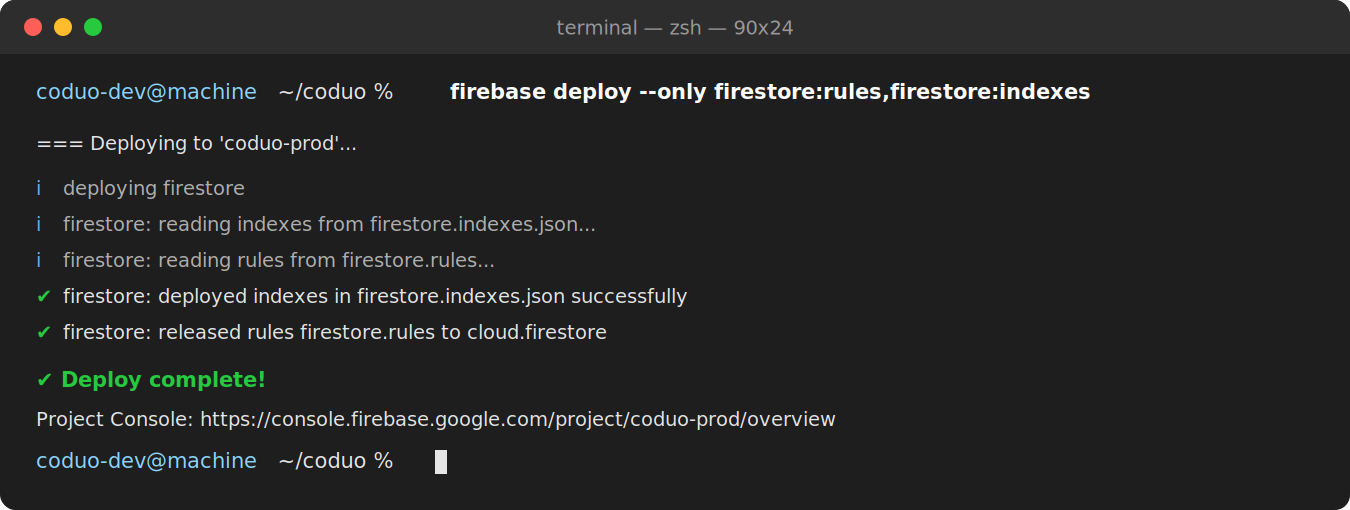
Terminal output after deploying Firestore security rules and indexes — confirms rules and indexes are live with no errors.
Common Index Error
If you see this error in the app:
The query requires an index. You can create it here: https://console.firebase.google.com/...

→ Click the link — it takes you directly to the index creation page.
→ Wait 2-5 minutes for the index to build after creating it.
14. Troubleshooting
Admin Panel Issues
Splash Screen Stuck / Never Loads
| Item | Details |
|---|---|
| Symptom | Admin panel shows the loading screen forever |
| Cause | JavaScript SyntaxError in index.html — usually a template token not replaced |
| Fix | Check lms_admin/web/index.html. Remove any manual _flutter.loader.load() calls. The file should only have: <script src="flutter_bootstrap.js" async></script> |
Access Denied After Login
| Item | Details |
|---|---|
| Symptom | Login succeeds but shows “Access Denied” toast |
| Cause | The user is not in the admin_users collection and doesn't have role: ['admin'] in users |
| Fix | Follow Section 12 — Creating the First Admin User to add the user to the admin_users collection |
Admin Panel Shows Wrong Firebase Data
// Check lms_admin/lib/services/auth_service.dart:
static const String _projectId = 'YOUR_CORRECT_PROJECT_ID';
Mobile App Issues
flutter pub get Fails
flutter clean
flutter pub get

# If still failing:
flutter pub cache repair
flutter pub get
Android Build Fails — NDK Version
| Item | Details |
|---|---|
| Error | NDK version X.X.X is not installed |
| Fix | Android Studio → SDK Manager → SDK Tools → NDK (Side by side) → install 27.1.12297006 |
iOS Build Fails — CocoaPods
cd lms_app/ios
pod repo update
pod install --repo-update
Google Sign-In Fails on Android
Cause: SHA-1 fingerprint not added to Firebase. Follow the steps in Section 10 — Social Login to add your SHA-1 fingerprint.
Firebase Functions Issues
Functions Deploy Fails
cd functions
nvm use 22
npm run build   # check for TypeScript errors first
firebase deploy --only functions
Secret Not Found Error
firebase functions:secrets:list   # see what's set
firebase functions:secrets:set MISSING_SECRET_NAME
firebase deploy --only functions
Useful Debug Commands
# Check Flutter environment
flutter doctor -v

# Check connected devices
flutter devices

# View Firebase function logs
firebase functions:log

# Check Firebase project
firebase projects:list
firebase use

# Verify secrets
firebase functions:secrets:list

# View Android logs
adb logcat | grep flutter
Commands Quick Reference
Mac Terminal Commands
flutter doctor                         # check Flutter setup
flutter pub get                        # install Flutter packages
flutter run                            # run app on connected device
flutter run -d chrome                  # run admin panel on Chrome
flutter build appbundle --release      # build Android AAB
flutter build ipa --release            # build iOS IPA
flutter build web --release            # build admin panel (in lms_admin/)
firebase deploy --only hosting:admin   # deploy admin panel
firebase deploy --only functions       # deploy Cloud Functions
firebase deploy                        # deploy everything at once
Windows PowerShell Commands
flutter doctor
flutter build appbundle --release
flutter build web --release
firebase deploy --only hosting:admin
firebase deploy --only functions
firebase deploy
Key URLs
| Resource | URL |
|---|---|
| Firebase Console | console.firebase.google.com |
| Google Play Console | play.google.com/console |
| App Store Connect | appstoreconnect.apple.com |
| Apple Developer | developer.apple.com |
| Flutter Docs | docs.flutter.dev |
| Firebase Docs | firebase.google.com/docs |
| Groq Console | console.groq.com |
| Google AI Studio (Gemini) | aistudio.google.com |
| Judge0 on RapidAPI | rapidapi.com/judge0-official/api/judge0-ce |
| Stripe Dashboard | dashboard.stripe.com |
| Paystack Dashboard | dashboard.paystack.com |
| AdMob Console | admob.google.com |
Setup Checklist
Use this checklist to track your setup progress. Complete each item in order before proceeding to the next section.
Environment Setup
- Flutter SDK installed and verified (flutter doctor shows green)
- Android Studio installed with SDK & emulator configured
- Xcode installed and license accepted (Mac only)
- CocoaPods installed (Mac only)
- Node.js 22 installed via nvm
- Firebase CLI installed and logged in
- Project dependencies installed (flutter pub get in lms_app and lms_admin)
Firebase Setup
- Firebase project created
- Authentication enabled (Email/Password + Google)
- Firestore database created (Production mode)
- Firebase Storage enabled
- Firebase Hosting configured (admin + public sites)
- Firebase Blaze plan enabled (required for Functions)
- Android app registered — google-services.json placed
- iOS app registered — GoogleService-Info.plist placed
- firebase_options.dart updated in lms_app and lms_admin
Branding
- App name updated in app_config.dart, AndroidManifest.xml, and Info.plist
- Primary colour updated in app_config.dart and mwaghavul_theme.dart
- Logo placed at assets/images/logo.png (both apps)
- App icon placed at assets/images/icon.png (1024×1024px)
- flutter pub run flutter_launcher_icons run
- Package name changed from com.coduo.apps (Android + iOS)
Deployment
- Firestore security rules deployed
- Firestore indexes deployed
- Admin panel built and deployed to Firebase Hosting
- First admin user created
- Cloud Functions dependencies installed and deployed
API Keys & Configuration
- GROQ_API_KEY set (minimum recommended for AI)
- JUDGE0_API_KEY and JUDGE0_API_URL set
- STRIPE_SECRET_KEY and publishable key configured (if using Stripe)
- PAYSTACK_SECRET_KEY and public key configured (if using Paystack)
- Bank transfer details configured (if using)
- Google Sign-In SHA-1 fingerprint added to Firebase
- AdMob App IDs added to AndroidManifest.xml and Info.plist
- AdMob ad unit IDs configured in admin panel
Store Submission
- Android keystore generated and backed up securely
- key.properties configured with keystore details
- Android AAB built (flutter build appbundle --release)
- Google Play Console account created ($25 one-time fee)
- App listing completed with screenshots and description
- iOS bundle ID registered in Apple Developer portal
- App created in App Store Connect
- iOS IPA built (flutter build ipa --release)
- APNs key uploaded to Firebase for push notifications
App Features Overview
Mobile App — Learning Experience
- Structured Learning Tracks — tiered curriculum (Beginner → Intermediate → ML/AI) with modules and lessons
- 4 Exercise Types — concept cards, coding exercises, fill-in-the-blank, multiple choice
- Real Code Execution — Judge0 integration; runs Python, JavaScript, SQL, and more
- Test Case Validation — per-exercise test cases with pass/fail feedback and detailed results
- Skill Assessment Onboarding — adaptive quiz places users at the right level on first launch
- Daily Coding Challenges — one challenge per day with countdown timer and 7-day history
- Offline Mode — lessons cached locally; full offline reading with sync on reconnect
- PDF Library — in-app PDF reader for reference materials and ebooks
- Spaced Repetition System — flashcard-style review queue for coding concepts
AI Features
- AI Code Reviewer — Groq-powered code review with line-by-line comments and rating
- AI Error Explanation — one-tap AI explanation of runtime/compile errors in plain English
- AI Tutor Chat (“Ask Cody”) — in-lesson conversational AI tutor with lesson context awareness
- AI-Powered Recommendations — ML-based lesson recommendations based on performance history
Gamification
- Streak System — daily streak tracking with fire animation and milestone celebrations
- Streak Freeze — purchase freeze tokens to protect streak on missed days
- Hearts / Lives System — 5 hearts per session; deducted on wrong answers
- XP & Levelling — XP awarded for lessons, exercises, challenges, and daily challenges
- Gems (Virtual Currency) — earn gems; spend in the Gem Shop
- 40+ Achievements & Badges — across 7 categories with animated unlock celebration
- League / Division System — Bronze → Silver → Gold → Diamond weekly leagues
- Weekly XP Reset — league XP resets every Sunday with promotions/demotions
- Cosmetics System — unlock avatar frames, profile themes, and visual customisations
Social & Leaderboards
- 4-Tab Leaderboard — Weekly, All Time, League, and Following tabs
- Visual Podium — top 3 users on animated gold/silver/bronze podium
- Follow / Friend System — follow other users; Following tab shows friends' weekly XP
- Public Profile Screen — view any user's stats, badges, completed tracks, and activity
- Coding Clubs / Groups — create and join coding clubs with shared challenges
- Portfolio Builder — auto-generated PDF portfolio of completed tracks and skills
Payments & Monetisation
- Stripe Integration — card payments with 3D Secure support
- Paystack Integration — card and bank payments for African markets
- Bank Transfer — manual bank transfer with admin verification workflow
- Multi-Currency Support — USD, NGN, GHS and configurable exchange rates
- Subscription Plans — configurable free/pro/premium tiers with feature gates
- Purchase History — full transaction history with receipt viewer and PDF export
Admin Panel
- Live Dashboard — total users, revenue, active learners, lesson completions
- Track, Lesson & Challenge Manager — full content CRUD with ordering
- Exercise Builder — per-exercise test cases, hints, XP reward, language selection
- User Management — searchable user list, role assignment, export to CSV
- Transaction Management — full transaction list with status filter and bank transfer verification
- Push Notification Sender — send FCM notifications to all users or segments
- Revenue Analytics — period-based revenue charts with payment method breakdown
- Daily Challenge Manager — calendar view for scheduling with bulk create/edit
- Cosmetics Manager — create/edit cosmetic items with gem prices and rarity
Technical
- Flutter 3.x — single codebase for Android and iOS
- Firebase Backend — Firestore, Auth, Storage, FCM, App Check
- Riverpod State Management — reactive, testable state
- Hive Offline Cache — lessons and preferences cached locally
- 11 Languages — English, Arabic, Spanish, French, German, Hindi, Hebrew, Indonesian, Japanese, Portuguese, Chinese
- RTL Support — full right-to-left layout for Arabic and Hebrew
- Dark / Light Mode — system-aware with manual override
- Custom Coding Keyboard — extra toolbar row with brackets, operators, indent/dedent
- Syntax Highlighting — Python, JavaScript, SQL with theme-aware colour schemes
Licensing
| License | Stripe & Paystack | AdMob | Permitted Use |
|---|---|---|---|
| Regular License | Not enabled | Not enabled | Personal projects, single client, non-commercial |
| Extended License | Fully enabled | Fully enabled | Commercial projects, earn from users, SaaS |
Support & Contact
Coduo is an independent developer product. Please read this documentation carefully before reaching out for support.
check-links.sh script is included with the documentation and can be run anytime with bash check-links.sh to scan every page and report any links that no longer resolve.
| Type | Contact |
|---|---|
| Bug Reports & Feature Requests | longsblack33@gmail.com |
| WhatsApp Support | +2348035626403 |
| Freelance & Customisation Enquiries | longsblack33@gmail.com |
We also offer freelance hire and customisation services. If you need the app customised for your specific use case, send a detailed description of your requirements to longsblack33@gmail.com.